

UnaGo for Slack: bring your AI agents into every conversation
Most teams already have a place where work happens: Slack. It is where campaigns get discussed, decisions get made and questions get asked. Until now, asking an AI agent for help usually meant leaving that conversation, opening another tool and copying context back and forth.
With the new two-way Slack integration, UnaGo meets your team where it already works. You can summon an agent from any Slack thread, and your agents can read, post and share files back in your workspace.
One integration, two directions
| Direction | What happens |
|---|---|
| Slack to UnaGo | A mention, DM, /unago command or shortcut creates or continues an UnaGo chat. |
| UnaGo to Slack | An agent can read Slack, find users and, with permission, post messages or files. |
Using UnaGo from Slack
- Type
@UnaGoon its own to open the agent and team picker. - Type
/unagofor the same picker. - Type
/unago Write a launch announcementto open a form with the message prefilled. - DM UnaGo directly for a private conversation.
- Reply in the same Slack thread to continue the same UnaGo chat.
The agent's answer streams back into the same Slack thread. Attachments can be sent into UnaGo, and generated files can be returned to Slack.
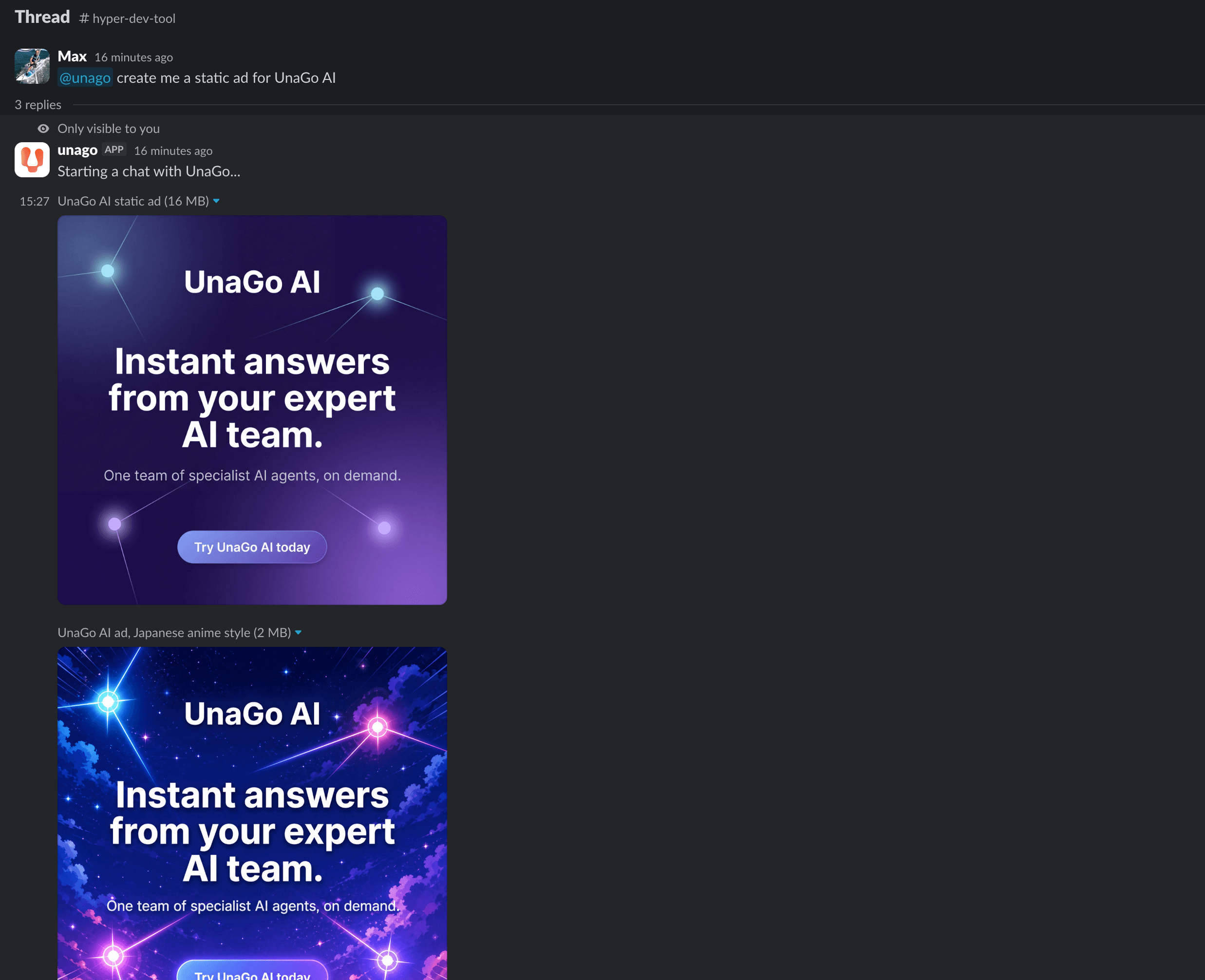
A mention of @unago in a thread brings the agent's work straight back to Slack, including generated files.
Targeting agents and teams
You can point a request at a single agent or at a whole team:
@UnaGo "SEO Agent" summarise the latest campaign results
/unago agent:"Google Ads Jedi" review this campaign
For full control:
@UnaGo -agent "Static Ads Local" -name "August Campaign Review" analyse these results
Useful commands:
@UnaGo agentsor/unago agents: show available agents.-agent "Exact Agent Name": target an agent directly.-name "Chat Name": keep a specific UnaGo chat name.-agent <message>: open the picker with the message carried into the form.
Names with spaces should be quoted. Only enabled, active and visible agents appear. Selecting a team currently routes the work through that team's manager agent.
One thing to remember: once a Slack thread is connected to an UnaGo chat, its agent, team and chat name are fixed. Start a new Slack thread to choose a different target.
Using Slack from an UnaGo chat
The connection works in reverse too. From any UnaGo chat, you can ask your agents to work with Slack in plain English:
- "Show my connected Slack workspaces."
- "List channels containing 'marketing'."
- "Read the latest 20 messages in
#sales." - "Show the replies to this Slack message."
- "Find the Slack profile for
person@example.com." - "Send this announcement to
#general." - "Upload this report to the finance channel."
Behind those simple requests sit real capabilities:
- Workspace and channel discovery
- Channel and thread history
- Channel membership
- User lookup by exact email or Slack user ID
- Message posting, editing and deletion
- File uploads
- Workspace-wide search, where the Slack token supports it
A user lookup returns the Slack ID, username, real and display name, email, workspace ID, and bot, admin or deactivated status.
Why this matters for busy teams
This is where the integration starts to compound. An agent that can read a channel and act on it becomes a teammate:
- A marketing agent reads
#campaignseach morning and posts a summary of what changed overnight. - A sales agent spots a new lead mention and drafts the follow-up before the stand-up.
- A finance agent uploads the weekly report to the right channel without being chased.
No copying, no context switching, no "I'll do it when I'm back at my desk."
Access and limitations
Security and control come first:
- The Slack workspace must first be connected to your UnaGo company.
- On first use, an unlinked Slack user receives a secure sign-in link.
- The bot only accesses channels allowed by its Slack installation and membership.
- Posting can be disabled or restricted to approved channels.
- Workspace-wide search may be unavailable with bot-only Slack tokens.
- With several connected workspaces, UnaGo asks which one to target.
Get started
Connect your Slack workspace from the integrations page, mention @UnaGo in any thread and see what your agents can do without leaving the conversation. If you are new to UnaGo, start building for free and explore what the platform connects to.

The Slack integration card on the UnaGo integrations page, ready to connect.
UnaGo is the AI-first operating system for teams. One conversation triggers a team of specialist AI agents, each with access to 1,000+ tools across 50+ integrations. Start building for free.